

Build an email editor into your app
Mail Quilt is a set of free, open-source packages. Drop in the ready-made editor, build your own page around it, or build your own editor on the document model underneath.
- License
- MIT, with no paid tier
- Packages
- Four, each built on the last
- Works with
- Any framework, with a React component
- You keep
- Each email, as JSON
- You send
- HTML, written by MJML
- Status
- 0.x, before its first release
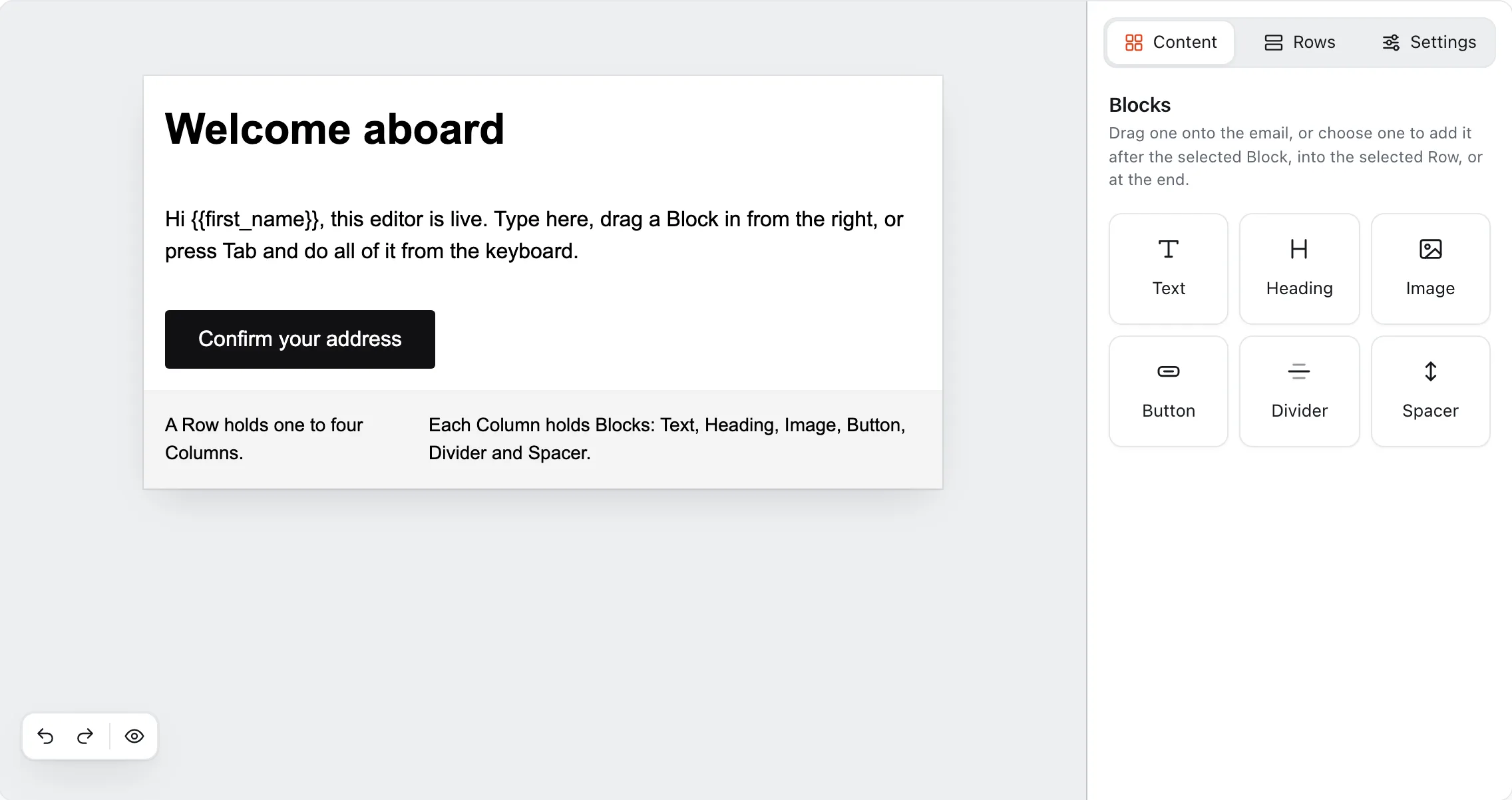
This is a picture. The editor needs more room than this, so open the page in a wider window to try it.
--mq-color-accent: #d4380fFour packages. Take as much as you need.
The editor above is the top layer. Under it are the document model and the renderer, and you can use those without it. Choose a package to see what it's for.
@mailquilt/react
The MailQuilt and MailQuiltShell components. They render on the server, and load the editor in the browser.
- Install it when
- Your app uses React 19.
- It comes with
- Installs the editor for you.
npm install @mailquilt/react@mailquilt/editor
The <mail-quilt> element, and <mail-quilt-shell>, an editor page ready-made. It works in any framework, or from a CDN on a page with no build step.
- Install it when
- Your app isn't a React app, or your page has no build step.
- It comes with
- Brings the core and the renderer with it.
npm install @mailquilt/editor@mailquilt/core
What an email is: the document's types, createEmail(), loadDocument() and the Commands that change one. The editor is built on it.
- Install it when
- You create, check or change emails in code, or build an interface of your own.
- It comes with
- Needs no DOM, and nothing else from Mail Quilt.
npm install @mailquilt/core@mailquilt/renderer
renderEmail() turns a saved email into HTML. It's what the editor's exportHtml() runs.
- Install it when
- You want the HTML on your server, such as just before you send.
- It comes with
- Needs no DOM. It brings the core, and no editor code.
npm install @mailquilt/rendererTake the Shell
A whole editor page, ready-made: the editor, a header, Import and Export, messages, and saving in the browser.
You build nothing.
Read about the ShellTake the editor
The canvas and the side panel, as one element you set an email on and listen to.
You build the page around it: your own header, your own buttons, your own way of saving.
Read the quick startTake the core and the renderer
The email as data, the Commands that change it, and the HTML. The editor is built on these, and you can build on them too.
You build your own interface, or none. The docs cover changing emails in code. Building a whole interface this way isn't documented yet.
Read how to change emails in codeYour app keeps the emails.
After every change, the editor hands you the email as a JSON document. Save it wherever you like and pass it back to open the email again. Mail Quilt stores nothing and runs no server.
{
  "kind": "blocks",
  "rows": [
    {
      "columns": [
        {
          "blocks": [
            {
              "id": "home-heading",
              "props": {
                "content": {
                  "content": [
                    {
                      "content": [
                        {
                          "text": "Welcome aboard",
                          "type": "text"
                        }
                      ],
                      "type": "paragraph"
                    }
                  ],
                  "type": "doc"
                },
                "level": 1
              },
              "type": "heading"
            },
            {
              "id": "home-text",
              "props": {
                "content": {
                  "content": [
                    {
                      "content": [
                        {
                          "text": "Hi {{first_name}}, this editor is live. Type here, drag a Block in from the right, or press Tab and do all of it from the keyboard.",
                          "type": "text"
                        }
                      ],
                      "type": "paragraph"
                    }
                  ],
                  "type": "doc"
                }
              },
              "type": "text"
            },
            {
              "id": "home-button",
              "props": {
                "backgroundColor": "#111113",
                "color": "#ffffff",
                "href": "{{confirm_url}}",
                "label": "Confirm your address"
              },
              "type": "button"
            }
          ],
          "id": "home-welcome-column",
          "props": {},
          "width": 100
        }
      ],
      "id": "home-welcome",
      "props": {}
    },
    {
      "columns": [
        {
          "blocks": [
            {
              "id": "home-rows",
              "props": {
                "content": {
                  "content": [
                    {
                      "content": [
                        {
                          "text": "A Row holds one to four Columns.",
                          "type": "text"
                        }
                      ],
                      "type": "paragraph"
                    }
                  ],
                  "type": "doc"
                },
                "fontSize": 14
              },
              "type": "text"
            }
          ],
          "id": "home-facts-narrow",
          "props": {},
          "width": 33
        },
        {
          "blocks": [
            {
              "id": "home-columns",
              "props": {
                "content": {
                  "content": [
                    {
                      "content": [
                        {
                          "text": "Each Column holds Blocks: Text, Heading, Image, Button, Divider and Spacer.",
                          "type": "text"
                        }
                      ],
                      "type": "paragraph"
                    }
                  ],
                  "type": "doc"
                },
                "fontSize": 14
              },
              "type": "text"
            }
          ],
          "id": "home-facts-wide",
          "props": {},
          "width": 67
        }
      ],
      "id": "home-facts",
      "props": {
        "backgroundColor": "#f4f4f5"
      }
    }
  ],
  "settings": {
    "backgroundColor": "#ffffff",
    "fontFamily": "Arial, Helvetica, sans-serif",
    "language": "en",
    "preheader": "Confirm your address to get started",
    "width": 600
  },
  "version": 1
}<!doctype html> <html lang="en" dir="auto" xmlns="http://www.w3.org/1999/xhtml" xmlns:v="urn:schemas-microsoft-com:vml" xmlns:o="urn:schemas-microsoft-com:office:office"> <head> <title></title> <!--[if !mso]><!--> <meta http-equiv="X-UA-Compatible" content="IE=edge"> <!--<![endif]--> <meta http-equiv="Content-Type" content="text/html; charset=UTF-8"> <meta name="viewport" content="width=device-width, initial-scale=1"> <style type="text/css"> #outlook a { padding:0; } body { margin:0;padding:0;-webkit-text-size-adjust:100%;-ms-text-size-adjust:100%; } table, td { border-collapse:collapse;mso-table-lspace:0pt;mso-table-rspace:0pt; } img { border:0;height:auto;line-height:100%; outline:none;text-decoration:none;-ms-interpolation-mode:bicubic; } p { display:block;margin:13px 0; } </style> <!--[if mso]> <noscript> <xml> <o:OfficeDocumentSettings> <o:AllowPNG/> <o:PixelsPerInch>96</o:PixelsPerInch> </o:OfficeDocumentSettings> </xml> </noscript> <![endif]--> <!--[if lte mso 11]> <style type="text/css"> .mj-outlook-group-fix { width:100% !important; } </style> <![endif]--> <style type="text/css"> @media only screen and (min-width:480px) { .mj-column-per-100 { width:100% !important; max-width: 100%; } .mj-column-per-33 { width:33% !important; max-width: 33%; } .mj-column-per-67 { width:67% !important; max-width: 67%; } } </style> <style media="screen and (min-width:480px)"> .moz-text-html .mj-column-per-100 { width:100% !important; max-width: 100%; } .moz-text-html .mj-column-per-33 { width:33% !important; max-width: 33%; } .moz-text-html .mj-column-per-67 { width:67% !important; max-width: 67%; } </style> </head> <body style="word-spacing:normal;background-color:#ffffff;"> <div style="display:none;font-size:1px;color:#ffffff;line-height:1px;max-height:0px;max-width:0px;opacity:0;overflow:hidden;">Confirm your address to get started</div> <div aria-roledescription="email" role="article" lang="en" dir="auto" style="word-spacing:normal;background-color:#ffffff;" > <!--[if mso | IE]><table align="center" border="0" cellpadding="0" cellspacing="0" class="" role="presentation" style="width:600px;" width="600" ><tr><td style="line-height:0px;font-size:0px;mso-line-height-rule:exactly;"><![endif]--> <div style="margin:0px auto;max-width:600px;"> <table align="center" border="0" cellpadding="0" cellspacing="0" role="presentation" style="width:100%;" > <tbody> <tr> <td style="direction:ltr;font-size:0px;padding:0;text-align:center;" > <!--[if mso | IE]><table role="presentation" border="0" cellpadding="0" cellspacing="0"><tr><td class="" style="vertical-align:top;width:600px;" ><![endif]--> <div class="mj-column-per-100 mj-outlook-group-fix" style="font-size:0px;text-align:left;direction:ltr;display:inline-block;vertical-align:top;width:100%;" > <table border="0" cellpadding="0" cellspacing="0" role="presentation" style="vertical-align:top;" width="100%" > <tbody> <tr> <td align="left" style="font-size:0px;padding:16px;word-break:break-word;" > <div style="font-family:Arial, Helvetica, sans-serif;font-size:32px;font-weight:700;line-height:1.5;text-align:left;color:#000000;" ><h1 style="margin:0;white-space:pre-wrap;font-family:Arial, Helvetica, sans-serif;line-height:1.5;color:#000000;font-size:32px;font-weight:700;text-align:left">Welcome aboard</h1></div> </td> </tr> <tr> <td align="left" style="font-size:0px;padding:16px;word-break:break-word;" > <div style="font-family:Arial, Helvetica, sans-serif;font-size:16px;line-height:1.5;text-align:left;color:#000000;" ><p style="margin:0;white-space:pre-wrap">Hi {{first_name}}, this editor is live. Type here, drag a Block in from the right, or press Tab and do all of it from the keyboard.</p></div> </td> </tr> <tr> <td align="left" style="font-size:0px;padding:16px;word-break:break-word;" > <table border="0" cellpadding="0" cellspacing="0" role="presentation" style="border-collapse:separate;line-height:100%;" > <tbody> <tr> <td align="center" bgcolor="#111113" role="presentation" style="border:none;border-radius:3px;cursor:auto;mso-padding-alt:10px 25px;background:#111113;" valign="middle" > <a href="{{confirm_url}}" style="display:inline-block;background:#111113;color:#ffffff;font-family:Arial, Helvetica, sans-serif;font-size:16px;font-weight:normal;line-height:1.5;margin:0;text-decoration:none;text-transform:none;padding:10px 25px;mso-padding-alt:0px;border-radius:3px;" target="_blank" > Confirm your address </a> </td> </tr> </tbody> </table> </td> </tr> </tbody> </table> </div> <!--[if mso | IE]></td></tr></table><![endif]--> </td> </tr> </tbody> </table> </div> <!--[if mso | IE]></td></tr></table><table align="center" border="0" cellpadding="0" cellspacing="0" class="" role="presentation" style="width:600px;" width="600" bgcolor="#f4f4f5" ><tr><td style="line-height:0px;font-size:0px;mso-line-height-rule:exactly;"><![endif]--> <div style="background:#f4f4f5;background-color:#f4f4f5;margin:0px auto;max-width:600px;"> <table align="center" border="0" cellpadding="0" cellspacing="0" role="presentation" style="background:#f4f4f5;background-color:#f4f4f5;width:100%;" > <tbody> <tr> <td style="direction:ltr;font-size:0px;padding:0;text-align:center;" > <!--[if mso | IE]><table role="presentation" border="0" cellpadding="0" cellspacing="0"><tr><td class="" style="vertical-align:top;width:198px;" ><![endif]--> <div class="mj-column-per-33 mj-outlook-group-fix" style="font-size:0px;text-align:left;direction:ltr;display:inline-block;vertical-align:top;width:100%;" > <table border="0" cellpadding="0" cellspacing="0" role="presentation" style="vertical-align:top;" width="100%" > <tbody> <tr> <td align="left" style="font-size:0px;padding:16px;word-break:break-word;" > <div style="font-family:Arial, Helvetica, sans-serif;font-size:14px;line-height:1.5;text-align:left;color:#000000;" ><p style="margin:0;white-space:pre-wrap">A Row holds one to four Columns.</p></div> </td> </tr> </tbody> </table> </div> <!--[if mso | IE]></td><td class="" style="vertical-align:top;width:402px;" ><![endif]--> <div class="mj-column-per-67 mj-outlook-group-fix" style="font-size:0px;text-align:left;direction:ltr;display:inline-block;vertical-align:top;width:100%;" > <table border="0" cellpadding="0" cellspacing="0" role="presentation" style="vertical-align:top;" width="100%" > <tbody> <tr> <td align="left" style="font-size:0px;padding:16px;word-break:break-word;" > <div style="font-family:Arial, Helvetica, sans-serif;font-size:14px;line-height:1.5;text-align:left;color:#000000;" ><p style="margin:0;white-space:pre-wrap">Each Column holds Blocks: Text, Heading, Image, Button, Divider and Spacer.</p></div> </td> </tr> </tbody> </table> </div> <!--[if mso | IE]></td></tr></table><![endif]--> </td> </tr> </tbody> </table> </div> <!--[if mso | IE]></td></tr></table><![endif]--> </div> </body> </html>
Merge Tags stay as written, so the service that sends your email fills them in.
A few lines to add it.
Set value to open an email, and listen for mq-change to save it and mq-error in case it's refused. Call exportHtml() when it's ready to send. That's the whole API.
npm install @mailquilt/editorThese are the quick start's own files. The project's tests install each one in a fresh project and run it in a browser.
import "@mailquilt/editor";
import { starterEmail } from "./starter-email.js";

const editor = document.querySelector("mail-quilt");
const saved = localStorage.getItem("email");

editor.addEventListener("mq-change", (event) => {
  localStorage.setItem("email", JSON.stringify(event.detail.document));
});
editor.addEventListener("mq-error", (event) => {
  document.querySelector("#load-error").textContent = event.detail.reason;
});
editor.value = saved ? JSON.parse(saved) : starterEmail;

document.querySelector("#export").addEventListener("click", async () => {
  document.querySelector("#exported-html").textContent =
    await editor.exportHtml();
});<!doctype html>
<html lang="en">
<head>
<meta charset="utf-8" />
<title>Email editor</title>
</head>
<body>
<mail-quilt></mail-quilt>
<button id="export" type="button">Export HTML</button>
<output id="exported-html"></output>
<output id="load-error"></output>
<script type="module">
import "https://cdn.jsdelivr.net/npm/@mailquilt/editor@0.1.0/dist/cdn/index.js";
import { starterEmail } from "./starter-email.js";
const editor = document.querySelector("mail-quilt");
const saved = localStorage.getItem("email");
editor.addEventListener("mq-change", (event) => {
localStorage.setItem("email", JSON.stringify(event.detail.document));
});
editor.addEventListener("mq-error", (event) => {
document.querySelector("#load-error").textContent = event.detail.reason;
});
editor.value = saved ? JSON.parse(saved) : starterEmail;
document.querySelector("#export").addEventListener("click", async () => {
document.querySelector("#exported-html").textContent =
await editor.exportHtml();
});
</script>
</body>
</html>"use client";
import { MailQuilt } from "@mailquilt/react";
import type { BlocksDocument, MailQuiltElement } from "@mailquilt/react";
import { useRef, useState } from "react";
import { starterEmail } from "./starter-email";
/** Nothing on the page shows the email until the browser has it, so this can't mismatch. */
const savedEmail = (): BlocksDocument | undefined => {
if (typeof window === "undefined") {
return;
}
const saved = localStorage.getItem("email");
return saved ? JSON.parse(saved) : starterEmail;
};
export const Editor = () => {
const editor = useRef<MailQuiltElement>(null);
const [email, setEmail] = useState(savedEmail);
const [html, setHtml] = useState("");
const [loadError, setLoadError] = useState("");
return (
<main>
<MailQuilt
onChange={(next) => {
localStorage.setItem("email", JSON.stringify(next));
setEmail(next);
}}
onError={({ reason }) => setLoadError(reason)}
ref={editor}
value={email}
/>
<button
onClick={async () =>
setHtml((await editor.current?.exportHtml()) ?? "")
}
type="button"
>
Export HTML
</button>
<output id="exported-html">{html}</output>
<output id="load-error">{loadError}</output>
</main>
);
};What people do in the editor
They build an email from six Blocks: Text, Heading, Image, Button, Divider and Spacer. Every Block and Row has settings, and so does the email as a whole.
Rows of one to four Columns
A Row takes one of six layouts, and that's the whole grid. Each is a layout MJML knows how to build for email clients.
All of it from the keyboard
Whatever can be dragged can be moved with keys. Tab reaches a Block, the arrow keys select the next one, and Alt with an arrow key moves it. A screen reader hears where it landed.
See every keyText that keeps its Merge Tags
People make text bold, italic or underlined and add links. A Merge Tag is typed like any other text, and comes out of the export exactly as it went in.
A preview of what will be sent
Preview shows the exported HTML itself, in a sandboxed frame, so nobody is guessing from the canvas. Every change can be undone and redone.
Before you rely on it
Mail Quilt is young, and it's better you read that here than find it out later.
- It's at version 0.x, so the API can still change between releases.
- It doesn't send email, store emails or host anything. It's a component in your app.
- Editing needs a screen at least 640 pixels wide. On a phone, people can still preview an email.
- Images are added by URL. There's no upload yet, and no library of templates.
Tested email clients
- GmailTo be checked before 0.1.0
- Apple MailTo be checked before 0.1.0
- OutlookUntested
- Any other clientUntested
Questions people ask first
If yours isn't here, ask it on GitHub.
Is it free?
Yes. Every package is MIT licensed, and every feature is in it. There's no paid tier and no hosted version to move you onto.
Does it send email?
No. It gives you the email's HTML, and you send it with the service you already use. Merge Tags such as {{first_name}} stay in the HTML as written, so that service can fill them in.
Where are the emails stored?
In your app. After every change the editor hands you the email as a JSON document. Save it where you save everything else, and pass it back to open the email again.
Do the emails work in Outlook?
Nobody has checked. The HTML is written by MJML, which is built to support Outlook, but no email from Mail Quilt has been opened there. If your emails go to Outlook users, send yourself a test first.
Can I build my own editor with it?
Yes, in two ways. You can put the editor on a page you lay out yourself, with your own header and buttons around it. Or you can skip the editor and build on the core package, which holds the email and the Commands that change it. The editor itself is built that way, though there's no guide to it yet.
Which frameworks does it work with?
Any of them, or none. The editor is a Web Component, so it's an HTML element like any other. There's a React component today, and Vue and Svelte ones are planned.
Can people use it without a mouse?
Yes. Dragging is one way to work, and the keyboard is another: Tab and the arrow keys select a Block, Alt with an arrow key moves it, and a screen reader hears where it went.
How big is it?
From a CDN the editor is 101 KB gzipped, with everything it needs inside. MJML is another 419 KB, and it only loads the first time someone opens Preview or exports. Both numbers are measured from the build this page was made with.
Drop it into your app
Or try it first. The Playground is the ready-made editor page, with nothing to install.
Planned next: Vue and Svelte components, more Blocks, and an MCP server so coding tools can build emails. Read the roadmap